How to Install IPTV on Firestick – Complete Setup Guide
An Amazon Firestick can turn a compatible television into a streaming device for live TV, movies, television series, and other internet-based entertainment. With the right IPTV application and a compatible subscription, you can access supported television content directly through your Fire TV interface.
If you're learning how to install IPTV on Firestick, the first step is understanding which IPTV player works with your device and which connection method your subscription requires.
Some IPTV applications are available directly through an app store, while others may require installation through a trusted APK source using the Downloader application. The exact process depends on your Fire TV model and operating system.
This guide explains how to prepare your Firestick, install a compatible IPTV player, configure Xtream Codes or M3U playlists, and troubleshoot common playback problems.
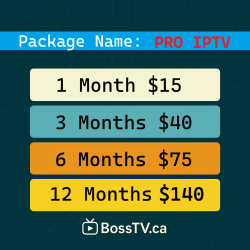
If you're comparing subscriptions for your streaming device, explore IPTV for Firestick options through BossTV and check which connection methods are supported.
1. What You Need Before Installing IPTV on Firestick
Before starting the installation, make sure you have the necessary equipment and account information.
- A compatible Amazon Fire TV Stick, Fire TV Cube, or Fire TV device
- A television with an available HDMI input, if using an external Firestick
- A stable internet connection
- An Amazon account for initial device setup
- A compatible IPTV player
- An IPTV subscription or authorized playlist source
- The login information required by your IPTV application
Depending on the subscription, the login method may involve an Xtream Codes server URL, username and password, an M3U playlist, or a Stalker Portal connection.
Not every IPTV application supports all these formats.
2. Connect and Set Up Your Amazon Firestick
If you're using a new Firestick, complete the initial device setup before installing IPTV applications.
- Connect the Firestick to an available HDMI port on your television.
- Connect the supplied power adapter according to Amazon's instructions.
- Turn on the television.
- Select the HDMI input connected to the Firestick.
- Follow the on-screen instructions to pair the remote.
- Connect the Firestick to your Wi-Fi network.
- Sign in with your Amazon account.
- Allow the device to complete any required updates.
- Open the Fire TV home screen.
Once the Firestick is connected to the internet, you can begin installing compatible applications.
3. Install Downloader on Firestick
Downloader is an application commonly used on compatible Fire TV devices to open download links and install supported files.
If the IPTV player you want is available through the official Amazon Appstore, installing it directly from the store is generally simpler.
For compatible Fire TV devices that support APK installation, Downloader may be useful when an application is distributed through its developer's official website.
Downloader Installation Steps
- Open the Fire TV home screen.
- Select the search function.
- Search for Downloader.
- Find the appropriate application in the Amazon Appstore.
- Select Download or Get.
- Wait for installation to finish.
- Open Downloader.
- Grant only the permissions needed for its intended operation.
Downloader availability and capabilities can vary by Fire TV operating system and device model.
4. Enable App Installation Permissions When Supported
Some Fire TV models running Fire OS support installing compatible Android APK files from outside the Amazon Appstore.
On supported devices, installation permissions may be located under:
Settings > My Fire TV > Developer Options > Install Unknown Apps
If Developer Options is hidden on a compatible Fire OS device, the device may provide a way to reveal it through the About section.
However, these instructions do not apply universally. Some newer Fire TV devices use different operating systems or security restrictions and may not support the same APK installation process.
Only enable installation permissions when necessary, and install applications from sources you trust.
5. Install an IPTV Player Using Downloader
If your Fire TV model supports APK installation and your chosen IPTV player provides an official APK, you can use Downloader to install the application.
- Open Downloader.
- Select the URL entry field.
- Enter the official download address supplied by the application developer.
- Confirm the download.
- Review the downloaded file and installation prompt.
- Select Install if the application is compatible and trusted.
- Wait for installation to finish.
- Open the IPTV application.
- Remove the downloaded installer file if it is no longer needed.
Avoid using unknown Downloader codes, shortened links, or unofficial APK websites. These may distribute outdated or modified applications.
If your device does not support APK installation, choose an IPTV application available through its supported app store instead.
6. Best IPTV Apps to Consider for Firestick
The best IPTV application depends on your Firestick model, subscription format, and preferred interface.
IPTV Smarters Pro
IPTV Smarters is known for an interface that separates live television, movies, and television series into different sections. Compatible versions support common IPTV account formats.
TiviMate IPTV Player
TiviMate provides a television-guide-style interface and is designed primarily for Android TV-based environments. Compatibility and installation options should be checked for your Fire TV device.
XCIPTV Player
XCIPTV offers category-based navigation and is commonly associated with Android-based IPTV applications.
OTT Navigator
OTT Navigator is an option for users who prefer advanced playlist organization, channel filters, and customizable playback settings.
STBEmu
STBEmu is designed for compatible Stalker Portal and MAG-style IPTV connections. It is not a direct replacement for every Xtream Codes or M3U player.
Application availability, installation requirements, and supported features can change. Verify compatibility before purchasing or installing a player.
7. Set Up Xtream Codes IPTV on Firestick
Xtream Codes IPTV is a common connection format used by compatible IPTV players.
An Xtream Codes-compatible account generally requires:
- Server URL
- Username
- Password
Xtream Codes Setup Steps
- Open your compatible IPTV player.
- Select the option to add an account or playlist.
- Choose Xtream Codes or Xtream Codes API login.
- Enter the server URL supplied with your subscription.
- Enter the username and password.
- Save the account information.
- Allow the application to load the available content.
- Open a supported live television channel to test playback.
If you're looking for an Xtream Codes IPTV provider, compare BossTV's available packages and confirm which ones support Xtream Codes login.
8. Install IPTV on Firestick Using an M3U Playlist
Some IPTV subscriptions provide an M3U playlist URL rather than separate Xtream Codes login details.
To configure an M3U playlist:
- Open an IPTV application that supports M3U playlists.
- Select Add Playlist or a similar option.
- Choose M3U URL or playlist import.
- Enter the supplied playlist URL.
- Give the playlist a recognizable name.
- Save the configuration.
- Wait for the channels to load.
Some players also support a separate Electronic Program Guide URL.
The exact setup process varies between IPTV applications.
9. Stalker Portal IPTV Setup on Firestick
A Stalker Portal IPTV subscription uses a different connection method from Xtream Codes or M3U playlists.
Stalker Portal services commonly use:
- Portal URL
- MAC Address registration
- A compatible portal-capable IPTV application
STBEmu is one example of an application associated with Stalker Portal connections on compatible Android-based devices.
Before installing a portal-based IPTV player, confirm that your Fire TV device supports the application and that your subscription supports MAC Address activation.
An Xtream Codes account cannot automatically be used as a Stalker Portal subscription.
10. Load Live TV, Movies & Series on Firestick
After your IPTV account is configured, the application may load different entertainment categories depending on the subscription.
These may include:
- Live television channels
- Sports programming
- Canadian and international television
- Movies
- Television series
- Video-on-Demand
- Favorites
- Electronic Program Guide
The exact channel lineup and on-demand library depend on the IPTV service.
Installing an IPTV player does not automatically provide premium channels or subscriptions.
11. Improve IPTV Streaming Performance on Firestick
If IPTV playback buffers or freezes, the cause may involve your internet connection, streaming device, application, or original content source.
Try the following troubleshooting steps:
- Restart your Firestick.
- Restart your modem or router if necessary.
- Check the internet connection.
- Use a stronger Wi-Fi signal or Ethernet adapter where supported.
- Close unnecessary background applications.
- Check for Fire TV software updates.
- Update your IPTV application.
- Clear the application's cache if appropriate.
- Compare playback on multiple channels.
A 5 GHz Wi-Fi connection may perform better in some environments, but a stronger 2.4 GHz connection can be preferable when the router is farther away.
No IPTV application or subscription can guarantee completely uninterrupted playback under every network condition.
12. Fix Common IPTV Installation Problems
Downloader Is Not Working
Check your internet connection, confirm that Downloader is supported on your device, and restart the application.
Unknown Apps Option Is Missing
Your device may use a different operating system or have restrictions that prevent APK installation. Check the official instructions for your Fire TV model.
IPTV APK Won't Install
The application may be incompatible with your device or operating system. Use the developer's official download source and verify supported platforms.
Xtream Codes Login Failed
Confirm the server URL, username, password, subscription status, and supported login method.
M3U Playlist Won't Load
Check the playlist URL, internet connection, subscription status, and application compatibility.
Stalker Portal Authentication Failed
Verify the portal URL, required MAC Address, and provider activation details.
IPTV Channels Keep Buffering
Test the network connection, restart the app, and compare several channels to identify whether the issue is specific to one stream.
13. Firestick IPTV Security & Installation Tips
When installing IPTV applications, use trusted software sources and protect your account information.
- Prefer official app stores when available.
- Download APK files only from trusted developer sources.
- Avoid unknown Downloader codes and suspicious download websites.
- Keep Fire TV software updated.
- Do not share IPTV usernames or passwords publicly.
- Review application permissions before installation.
- Check the subscription's connection and device limits.
- Use content sources that are authorized to distribute the programming offered.
Frequently Asked Questions About IPTV on Firestick
Can I install IPTV on Amazon Firestick?
Yes. Compatible Fire TV devices can run supported IPTV applications. Installation options depend on the device model and operating system.
Do I need Downloader to install IPTV?
Not always. If the IPTV application is available through a supported app store, you may be able to install it directly without Downloader.
Does Downloader work on every Firestick?
Downloader availability and its ability to install APK files depend on the Fire TV device and operating system.
What is the best IPTV player for Firestick?
The best choice depends on device compatibility and subscription format. IPTV Smarters, TiviMate, XCIPTV, and OTT Navigator are applications worth investigating where supported.
Can I use Xtream Codes on Firestick?
Yes, if you have a compatible IPTV application and a subscription that supports Xtream Codes login.
Can I use an M3U playlist on Firestick?
Yes. Compatible IPTV players can load M3U playlist URLs or files.
Can I use Stalker Portal IPTV on Firestick?
Some compatible applications support Stalker Portal connections on certain Android-based Fire TV devices. Confirm compatibility and activation requirements before installing.
Does IPTV on Firestick support 4K?
4K playback depends on the Fire TV model, television, IPTV application, original video source, subscription, and internet connection.
Is IPTV legal on Firestick in Canada?
IPTV is a streaming technology and is not inherently illegal. The legality of a particular service depends on content rights, authorization, and applicable laws.
Do I need a VPN for IPTV on Firestick?
A VPN is not universally required for IPTV playback. Compatibility and performance depend on the network, subscription provider, and device configuration.
Why does my IPTV keep buffering on Firestick?
Buffering can result from network instability, weak Wi-Fi, device limitations, application issues, or problems with the original stream.
Final Thoughts: Setting Up IPTV on Firestick
Learning how to install IPTV on Firestick involves choosing a compatible IPTV player, configuring the correct subscription format, and ensuring your device has a stable internet connection.
For supported Fire TV devices, Downloader can provide an installation option for trusted APK files. Other devices may require applications distributed through their supported app stores.
Whether your subscription uses Xtream Codes, M3U, or Stalker Portal, follow the appropriate setup process and verify compatibility before purchasing.
Explore BossTV's available IPTV packages to compare subscription formats and find an option compatible with your streaming device.
Related Products