How to Set Up a Formuler IPTV Box with MYTVOnline
Setting up a Formuler IPTV box is a convenient way to watch internet-based television on a compatible television. Formuler devices combine dedicated streaming hardware, remote-control navigation, and the MYTVOnline application for accessing supported IPTV subscriptions.
Whether you're using a Formuler Z10, Formuler Z11, or Formuler Z11 Pro Max, the setup process generally involves connecting your device to the internet, opening MYTVOnline, and configuring the connection method provided by your IPTV service.
This guide explains how to configure Stalker Portal, MAC Address, Xtream Codes, and M3U connections where supported. It also covers channel loading, Electronic Program Guide settings, remote-control features, and common troubleshooting steps.
If you're looking for a compatible IPTV box subscription, BossTV offers different IPTV packages that can be compared according to their connection methods and device requirements.
1. Understanding Formuler IPTV Boxes
Formuler manufactures Android-based streaming devices designed for television playback and compatible IPTV applications.
Popular models include:
- Formuler Z10 – A streaming device compatible with supported IPTV applications and MYTVOnline features.
- Formuler Z11 – A newer generation of Formuler streaming hardware with an updated MYTVOnline environment.
- Formuler Z11 Pro Max – A higher-specification Z11-series model designed for television streaming and compatible applications.
The exact MYTVOnline version, available settings, hardware specifications, and supported features depend on the Formuler model and installed firmware.
Formuler devices do not automatically include premium television subscriptions. You need a compatible IPTV account or another authorized content source.
2. Connect Your Formuler Box to Your Television
Before configuring IPTV, make sure your Formuler device is connected correctly.
- Remove the Formuler box, remote control, power adapter, and supplied accessories from the packaging.
- Connect the Formuler device to your television using an HDMI cable.
- Connect the power adapter to the device and an appropriate electrical outlet.
- Turn on the television and select the HDMI input connected to your Formuler box.
- Follow the on-screen instructions to complete the initial device setup.
- Choose your preferred language, display settings, and network connection.
If the Formuler home screen does not appear, check the HDMI cable, television input selection, and power connection.
3. Connect Formuler to Wi-Fi or Ethernet
A stable internet connection is important for live television and Video-on-Demand playback.
Ethernet Connection
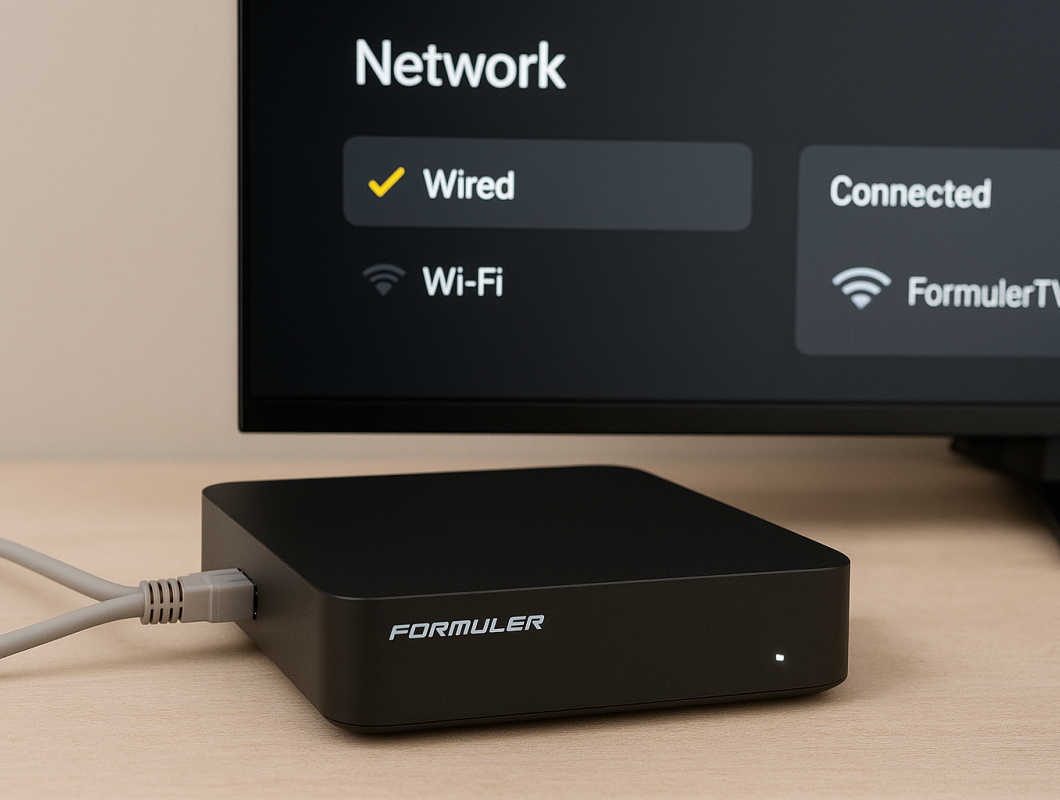
If your Formuler model supports wired networking, connect an Ethernet cable between the device and your router.
A wired connection can reduce Wi-Fi-related interference and may provide more consistent network performance.
Wi-Fi Connection
To connect through Wi-Fi:
- Open the device settings.
- Select the network or Wi-Fi section.
- Choose your wireless network.
- Enter the Wi-Fi password.
- Wait for the device to establish an internet connection.
If your router supports both 2.4 GHz and 5 GHz networks, the better choice depends on signal strength, distance, interference, and device compatibility.
4. Open the MYTVOnline IPTV Application
MYTVOnline is Formuler's IPTV application environment for managing compatible television services.
Depending on your device, the application may appear as MYTVOnline, MYTVOnline 2, or MYTVOnline 3.
To begin:
- Turn on your Formuler box.
- Open the MYTVOnline application from the home screen.
- Use the Formuler remote to navigate the application.
- Find the section for adding or managing IPTV connections.
- Select the appropriate connection type for your subscription.
Menu names can vary between MYTVOnline versions. Look for options such as Connections, Add Portal, or Add Playlist.
5. Set Up Formuler IPTV Using Stalker Portal
A Stalker Portal IPTV connection is commonly associated with Formuler devices and other portal-compatible IPTV boxes.
This connection method generally requires a portal URL and device MAC Address registration.
Stalker Portal Setup Steps
- Open MYTVOnline on your Formuler box.
- Navigate to the connection management section.
- Select the option to add a portal connection.
- Enter a recognizable portal name, such as the name of your IPTV service.
- Enter the portal URL supplied by your provider.
- Identify the MAC Address required for the connection.
- Confirm that the correct MAC Address has been registered or activated by the provider.
- Save the connection settings.
- Attempt to connect and load the available television content.
Some portal services require activation before the connection can be used. Entering a portal URL alone may not be sufficient.
Do not substitute an Xtream Codes server URL for a Stalker Portal URL unless the service explicitly supports that connection method.
6. How to Find Your Formuler MAC Address
When using MAC Address IPTV activation, your provider may need the MAC identifier associated with the Formuler IPTV application or device.
To locate the relevant address:
- Open MYTVOnline.
- Navigate to the connection or portal configuration screen.
- Look for the MAC Address or device identification information.
- Use the identifier required by your IPTV provider.
- Provide that identifier only through the provider's appropriate activation process.
Depending on the Formuler model and application, the MAC identifier used for portal activation may differ from the network MAC Address shown in Android settings.
If activation fails, verify which identifier your provider requires before changing any settings.
7. Configure Xtream Codes IPTV on Formuler
Some IPTV subscriptions use Xtream Codes instead of Stalker Portal authentication.
Xtream Codes-compatible accounts generally require:
- Server URL
- Username
- Password
To configure an Xtream Codes account in a compatible MYTVOnline version:
- Open the connection management menu.
- Select the Xtream Codes or API-based login option if available.
- Enter the server URL.
- Enter the supplied username and password.
- Save the connection.
- Allow the application to load the available content.
If your MYTVOnline version does not support the required login method, use another compatible IPTV application available for your Formuler device.
8. Add an M3U Playlist to Formuler
An M3U IPTV playlist is another common way to configure IPTV playback.
M3U subscriptions typically provide a playlist URL or file that contains the information needed to load supported streams.
- Open MYTVOnline or another compatible IPTV player.
- Select the option for adding an M3U playlist.
- Enter the playlist URL or import the supported playlist file.
- Save the configuration.
- Wait for the application to process the playlist.
- Browse the available channel categories.
M3U, Xtream Codes, and Stalker Portal are different connection methods. Not every IPTV subscription provides all three.
9. Load Live TV Channels, Movies & Series
After successfully connecting your Formuler device, MYTVOnline may display different content sections depending on your IPTV subscription.
Available sections may include:
- Live television
- Channel categories
- Favorites
- Movies
- Television series
- Video-on-Demand
- Electronic Program Guide
- Catch-Up TV where supported
Some services provide live television only, while others include movies, series, or additional playback features.
If a category is missing, confirm whether it is included in your subscription before assuming the application is malfunctioning.
10. Configure the Electronic Program Guide (EPG)
The Electronic Program Guide displays scheduling information for supported television channels.
Depending on the service and application, the guide may show:
- Current television programs
- Upcoming shows
- Channel schedules
- Program descriptions
- Additional scheduling information
To troubleshoot a missing EPG:
- Check that your IPTV connection is active.
- Open the guide or application settings.
- Look for an EPG refresh option.
- Refresh the program guide if supported.
- Verify that the provider supplies guide data for the affected channels.
Not every channel has EPG information, and some IPTV subscriptions do not provide complete guide data.
11. Optimize Formuler IPTV Streaming Performance
If you experience buffering, slow channel loading, or inconsistent playback, there are several settings worth checking.
Keep Your Device Updated
Check for official Formuler firmware and application updates through the device's supported update system.
Use a Stable Network
Ethernet may help reduce problems caused by weak Wi-Fi signals or wireless interference.
Check Video Output Settings
Confirm that your Formuler output resolution and refresh rate are appropriate for your television and the available video source.
Review Playback Settings
Some MYTVOnline versions provide playback-related settings. Their availability and recommended configuration depend on the device, firmware, and content source.
Avoid changing hardware decoding or buffer settings without understanding their effect. There is no universal configuration that guarantees better performance for every Formuler model.
Manage Background Applications
Close unnecessary applications when troubleshooting performance problems, especially on devices with limited available memory.
12. Formuler IPTV Remote Control Tips
Formuler remote controls are designed to make television navigation easier.
Depending on the model and remote configuration, useful features may include:
- Directional navigation
- Channel switching
- Electronic Program Guide access
- Favorites navigation
- Playback controls
- Dedicated application shortcuts
- Remote pairing and configuration options
If your remote stops responding, check its batteries, pairing status, and the instructions for your specific Formuler remote model.
13. Troubleshooting Common Formuler IPTV Problems
Problem: Portal Authentication Failed
Check the portal URL, required MAC Address, subscription status, and provider activation information.
Problem: Xtream Codes Login Not Working
Verify the server URL, username, password, and selected login method. Confirm that your account supports Xtream Codes.
Problem: Channels Are Not Loading
Test the internet connection, refresh the connection, and check whether the service is experiencing an interruption.
Problem: Frequent Buffering
Try a wired connection, check network activity, restart the device, and compare playback across different channels.
Problem: No EPG Information
Refresh the program guide and verify that EPG information is available from the provider.
Problem: MYTVOnline Crashes
Restart the Formuler box, check for updates, and confirm that sufficient device storage is available.
Problem: Remote Control Not Responding
Check batteries, pairing, and remote configuration. Follow the instructions supplied for your remote model.
14. IPTV Packages to Consider for Formuler Boxes
When choosing an IPTV service for Formuler, the most important factor is whether the subscription supports your device's connection method.
BossTV lists several IPTV products associated with Stalker Portal and compatible IPTV box configurations.
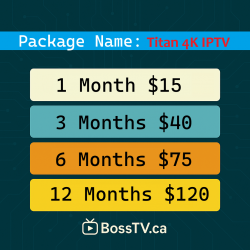
- Titan4K IPTV – A Stalker-oriented IPTV package to review for portal compatibility.
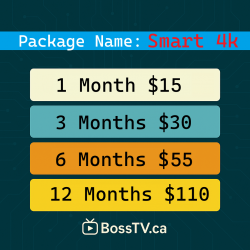
- Smart 4K IPTV – Another IPTV package associated with Stalker Portal connections.
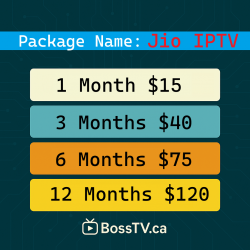
- Jio IPTV – A Stalker IPTV subscription option to compare.
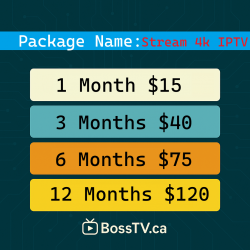
- Stream4K IPTV – An IPTV package to review for supported connection formats and device requirements.
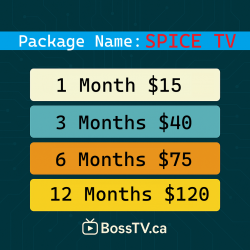
- Spice IPTV – A Stalker-oriented IPTV package with international programming categories described in its product information.
These are product options to compare, not a guarantee that every package supports every Formuler model or MYTVOnline version.
Before purchasing, confirm the required activation method, supported device, available channel lineup, subscription duration, and connection allowance.
You can also explore BossTV's stable IPTV service options and compare packages according to your Formuler device's requirements.
Frequently Asked Questions About Formuler IPTV Setup
Does Formuler Z11 Pro Max support Stalker Portal IPTV?
Formuler devices with compatible MYTVOnline software can support portal-based IPTV connections. Confirm the required activation method with your subscription provider.
Can I use more than one IPTV subscription on a Formuler box?
Supported MYTVOnline versions can save multiple connection profiles. Whether you can switch between or use particular subscriptions depends on the application, provider requirements, and account limits.
Does Formuler require a MAC Address?
MAC Address registration is commonly required for certain Stalker Portal subscriptions. Xtream Codes and M3U accounts generally use different authentication methods.
Can I use Xtream Codes on Formuler Z10 or Z11?
Compatible MYTVOnline versions and other supported IPTV applications may offer Xtream Codes login. Check your device's installed software and the connection method supplied with your subscription.
Is MYTVOnline free with Formuler?
Compatible Formuler devices generally include access to the MYTVOnline application designed for their hardware. Premium television subscriptions are separate.
Does Formuler support 4K IPTV?
Some Formuler models support 4K video output. Actual IPTV playback resolution depends on the source stream, subscription, application, device, and television.
Can I record IPTV channels on Formuler?
Some Formuler and MYTVOnline configurations support recording features with compatible storage and streams. Availability depends on the device, application, service, and applicable content restrictions.
Should I use a VPN with Formuler IPTV?
VPN compatibility depends on the IPTV service, device, network configuration, and provider requirements. A VPN is not automatically necessary for every IPTV setup, and it may affect connection performance or portal authentication.
How often should I update my Formuler box?
Check periodically for official firmware and application updates. Install relevant security and stability updates according to the manufacturer's guidance.
Does a Formuler box come with IPTV channels?
A Formuler box is streaming hardware. Premium IPTV channels require a separate compatible subscription or another authorized content source.
What should I do if my Formuler portal stops working?
Check your internet connection, portal URL, activation details, subscription status, and MYTVOnline updates. If the problem continues, contact the subscription provider for assistance.
Final Thoughts: Getting the Most from Your Formuler IPTV Box
Setting up a Formuler IPTV box becomes easier once you understand the difference between Stalker Portal, MAC Address activation, Xtream Codes, and M3U playlists.
Whether you're using a Formuler Z10, Z11, or Z11 Pro Max, start by confirming your subscription's connection method, completing the appropriate MYTVOnline configuration, and checking that your internet connection is stable.
If you're comparing IPTV packages for a Formuler device, browse the available options at BossTV and confirm compatibility before ordering.
Related Products