Setting up your Formuler IPTV Box with BossTV.ca is simple and ensures smooth 4K streaming of Canadian IPTV channels. This guide covers all steps for Z10, Z11, and Z11 Pro Max, including portal setup, MyTVOnline app configuration,
and optimization tips.
Step 1: Unbox and Connect Your Formuler IPTV Box
Unpack your Formuler device (Z10, Z11, or Z11 Pro Max) and connect it to your TV using HDMI.
Plug in the power adapter and turn on the device.
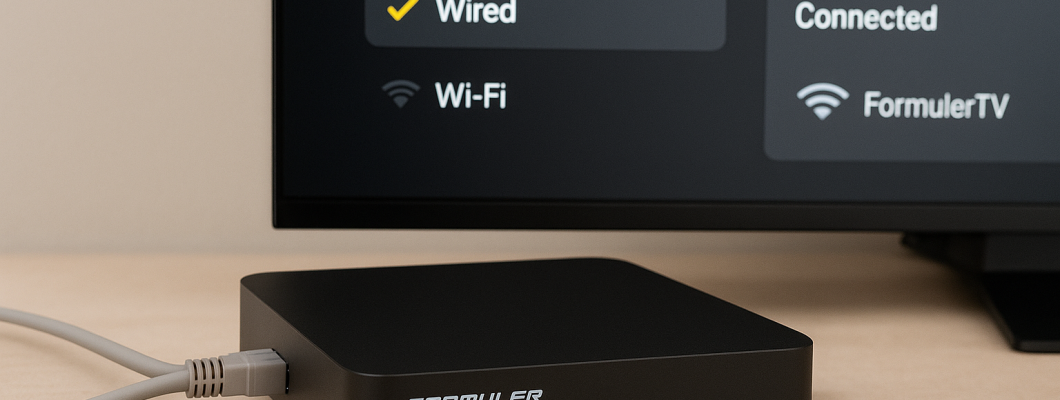
Connect to the internet via Ethernet (recommended) or Wi-Fi.
Turn on your TV and select the correct HDMI input. Complete the initial setup wizard by choosing your language and connecting to the network.
Step 2: Launch MyTVOnline (MTO) App
All Formuler IPTV Boxes come preloaded with MyTVOnline (MTO).
Open the MyTVOnline app from the home screen or press the dedicated Formuler IPTV Remote MTO button.
Familiarize yourself with the navigation buttons and interface.
MTO will prompt you to add a new portal for your IPTV service.
Step 3: Add BossTV IPTV Credentials
Click “Add Portal” or the “+” icon.
Enter your BossTV.ca IPTV portal details:
Portal Name: Customize (e.g., “BossTV Canada”)
Portal URL: [Your BossTV portal URL]
Username & Password: Provided by BossTV.ca
If MAC address authentication is required, find your Formuler box’s MAC in Settings > About and provide it to BossTV support.
Save the configuration and wait for verification.
Step 4: Load Channels & EPG
MyTVOnline connects to the BossTV server and loads:
Live channels
VOD library
Series collections
The EPG (Electronic Program Guide) will sync automatically.
Navigate channels with the remote, testing a few to confirm 4K playback and minimal buffering.
Step 5: Optimize Settings for Smooth Streaming
Open Settings in MTO.
Enable HW+ hardware acceleration for best video performance.
Adjust buffer size: 8–16 MB recommended.
Configure preferred video/audio output, parental controls, and interface layout.
Refresh EPG interval to keep program guide updated.
Add favorite channels for quick access and test TimeShift or recording features if supported.
Step 6: Troubleshooting & Common Issues
Common Formuler Z11 Pro Max Problems:
Authentication failure → verify portal URL and MAC address
Buffering → increase buffer size or use wired Ethernet
Remote not responding → replace batteries or reset Formuler IPTV Remote
Firmware issues → update Formuler device regularly
Step 7: Recommended BossTV IPTV Packages for Formuler Boxes
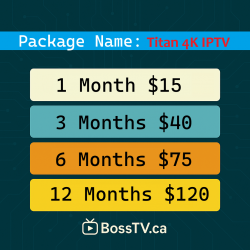
Titan4K IPTV Premium 4K streaming, multi-device support
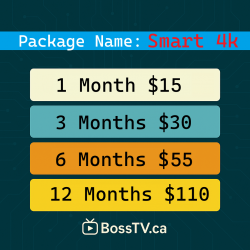
Smart 4K IPTV Ideal for smooth playback on Formuler boxes
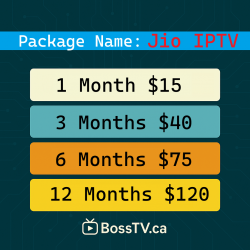
Jio IPTV Large channel selection & 4K support
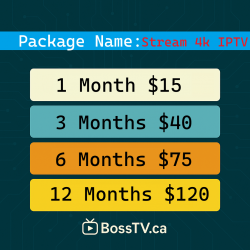
Stream4K IPTV Best for HD/4K performance
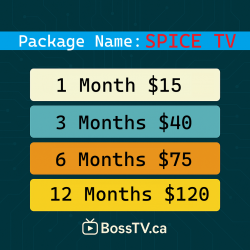
- Spice IPTV Best 4K Stalker IPTV server best for English content and South Asian channels, Indian, Pakistan, Punjabi, Afghani, Tamil, Telugu, Marathi, Malayalam etc.
Using these BossTV packages ensures your Formuler box runs at peak performance, with minimal buffering and seamless channel switching.
Frequently Asked Questions (FAQ)
1. Can I run multiple IPTV subscriptions on one Formuler Box?
No, only one active mac address and portal at a time. Stalker servers works best with Formuler boxes and they work only with mac address and each iptv device has it's own unique mac address.
2. How often should I update Formuler firmware?
Check monthly; apply updates quarterly unless critical.
3. Should I use a VPN with BossTV IPTV?
Not recommended with Stalker servers from bosstv.ca such as spice iptv, jio iptv, smart 4k iptv, Titan iptv.
4. Can I record IPTV streams to USB storage?
Yes, connect USB 3.0 drives; check BossTV’s DRM restrictions.
5. Warranty on Formuler Boxes?
12 months from purchase; retain proof of purchase.
This blog was brought to you by the BossTV.ca Canada's best IPTV service provider, providing 4k fast IPTV channels.
Related Products